
When manually handling a resubmission, you will need contact the customer first to retrieve the required documents. The recipient can sign their USPS form 1583 in the store. After you have reviewed the customers updated form 1583 and the 2 acceptable IDs, you can sign and upload the documents into the Admin Portal Dashboard and into the BCG.
- You can download the pre-filled form 1583 in the customers profile page.
- The online notary is not required if the customer signs in front of you.
- To email the customer from your Dashboard, click on "Send Email" in the "Recipient Admin" tile.
To print and upload the required documents:
1. locate the "Recipient Admin" tile, click on "Recipient Lookup".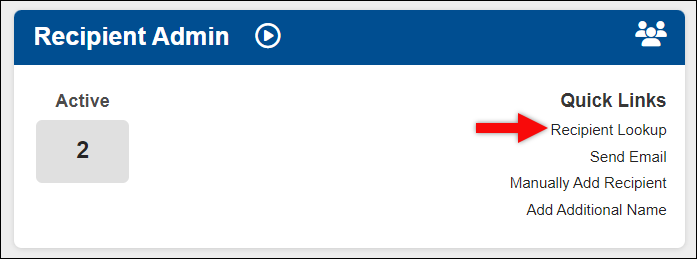
2. Search for the recipient by name or mailbox number and click on their mailbox.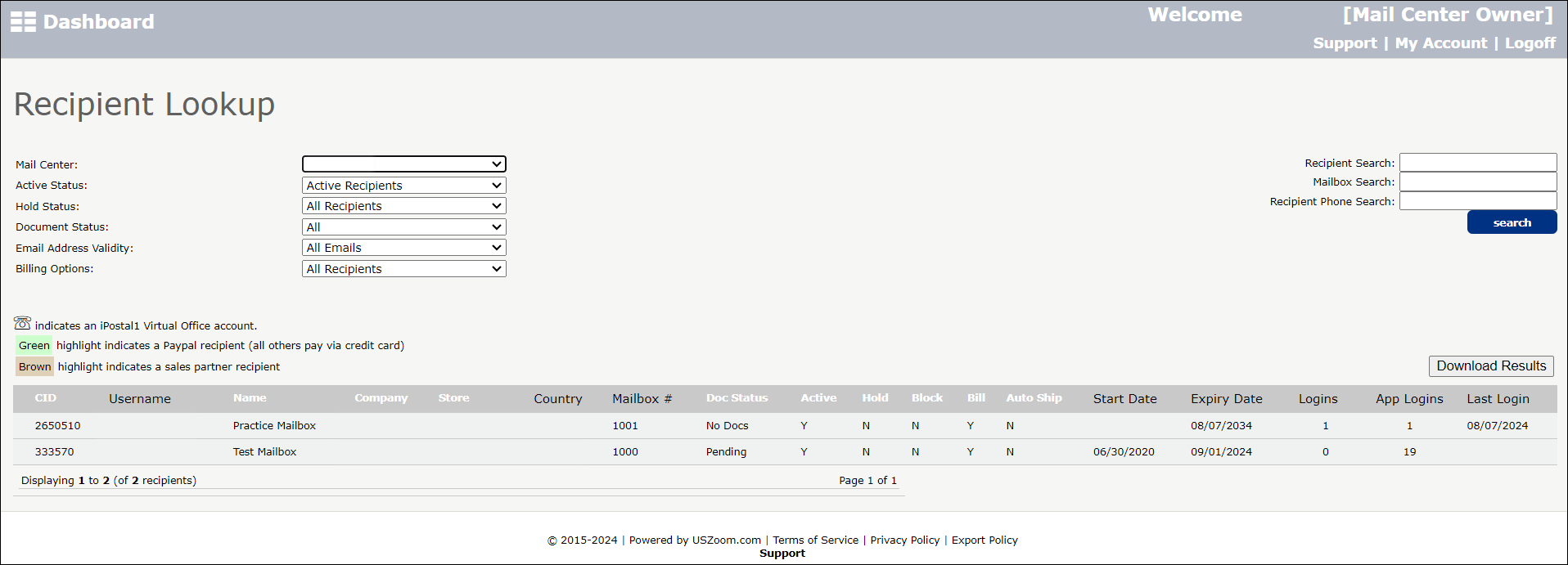
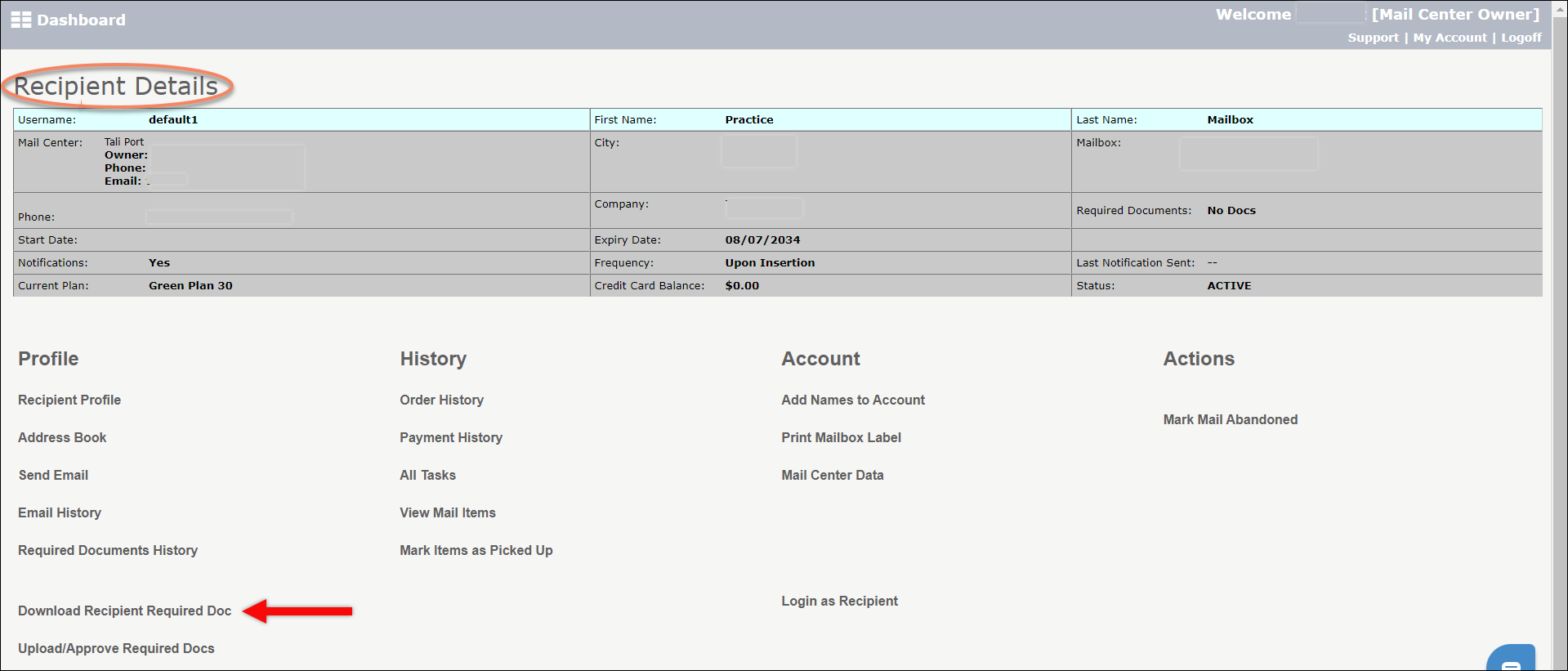
3. On the "Recipient Details" page select "Download Recipient Required Documents", Print the prefilled form 1583, fill in the customers details and have the recipient sign in box 13a-b.
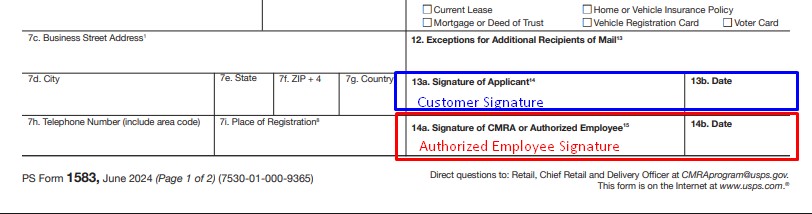
4. Sign and date the form as the CMRA/ Authorized employee in box 14a-b. Scan the documents and save the documents to your computer.
5. Click "Upload/ Approve Required Docs" in the Recipients Details page, to upload the documents.
Note: Please remember to upload the documents into the BCG and update the status in the Compliance Center.