
If you have completed a shipping task and need to go back to reprint the shipping label or commercial invoice, please follow the steps below.
To reprint a shipping label, commercial invoice:
1. Go to "Shipped Orders" or "Order Lookup" on the Dashboard.
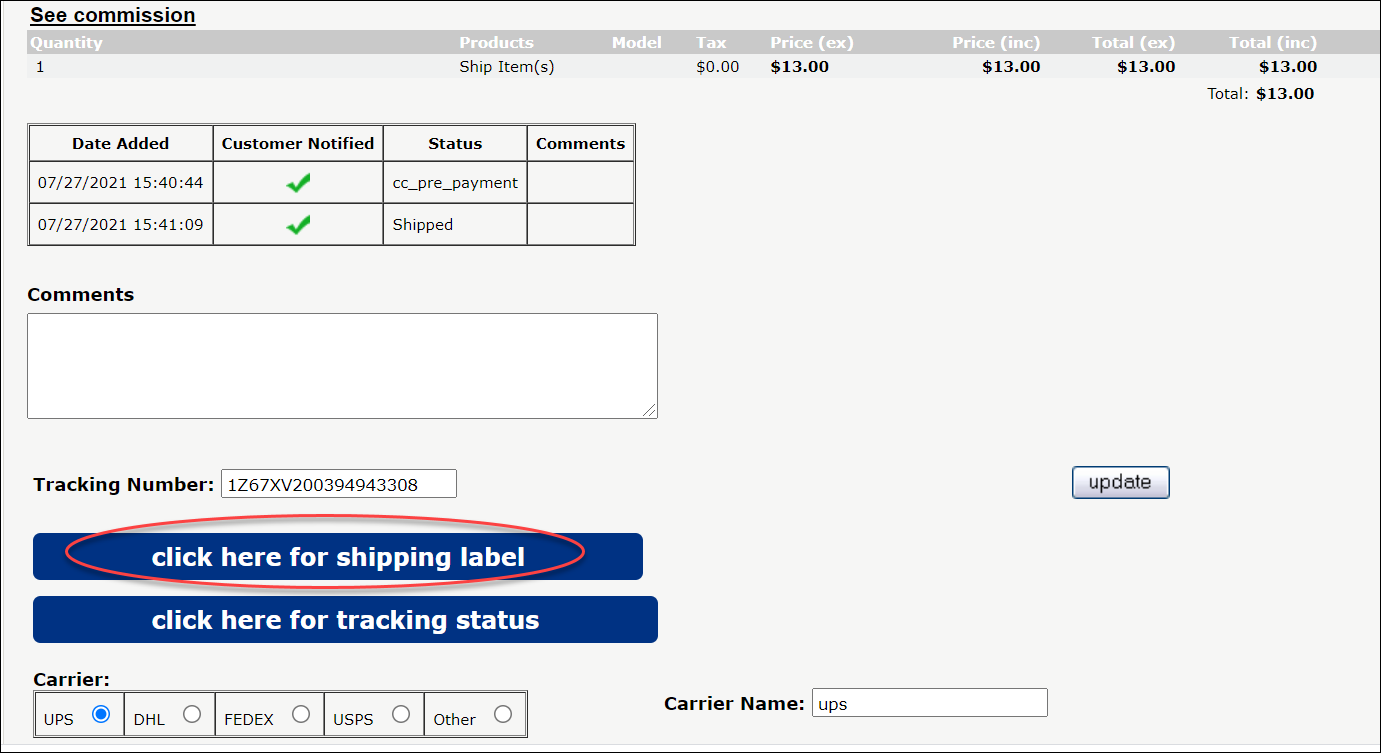
2. On the Order Lookup page, enter the "Order ID" and click on the results to see the invoice. This will contain a button to save/print the label, as well as tracking, pricing, and other information.

If you don't know the order number:
1. Click on "Recipient Lookup" on the dashboard.
2. Search for the box in question, click on the result.
3. On the Recipient Details page, click on "All Tasks" in the History column.
4. Find the task/item in question. To view the label, click "Click Here for Shipping Label".
If a label did not generate after processing a task:
1. Verify if the task is a "Shipping" or "Consolidate and Ship" task and not a "Consolidation" only. Our system does not generate a label for "Consolidation" only tasks.
2. Verify that the shipping method is not USPS Single Letter Rate. Our system does not generate a label for all USPS Single Letter Rate task. If the shipping method is USPS Single Letter Rate, please write out the shipping address on a new envelope and use a stamp to ship the mail item.
If you cannot find the label after following all of the steps: Please contact our support team for assistance.