
If you have scanned the wrong mail item when completing a task, you can simply upload new images from your Admin Portal dashboard. You will be able to go back to view/review the scan and edit the scanned images. The scan will automatically update the customers account.
Note:
- Once a scan task is completed in the system, we are unable to cancel or resubmit the scan task, you can only edit the images.
- Adding or updating images manually will not charge the customer.
- Credit Cards and Gift Cards cannot be scanned.
- Front and back of checks can be scanned.
- Scan should not be sent via email.
If a scan failed to upload or if you need to add pages to an existing scan:
1. Login in to the Dashboard and click on "Mail Lookup", under the "Insert Mail" tile.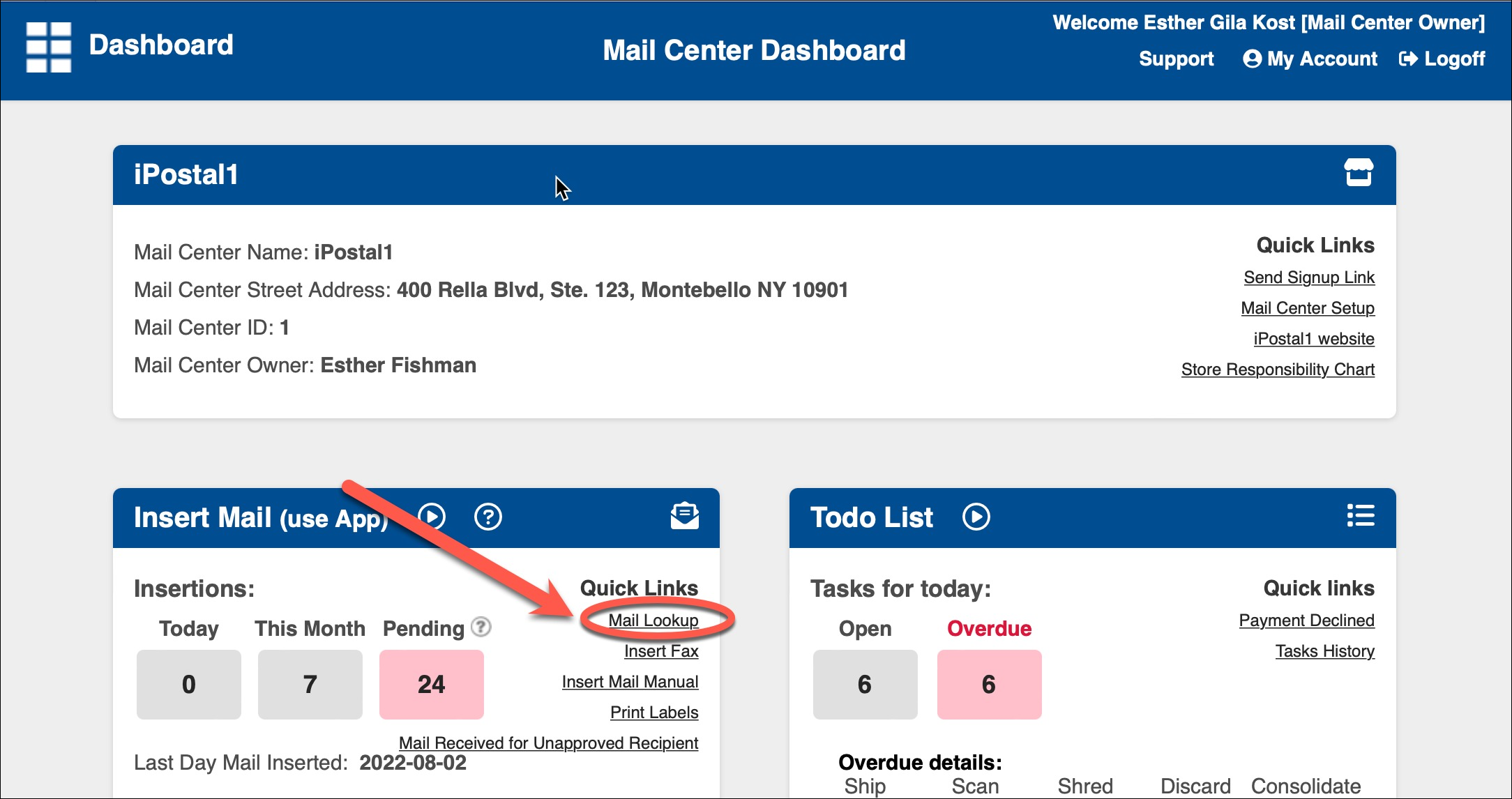 2. Enter the mail ID or the recipient's name and click "Search". Click on the mail item below.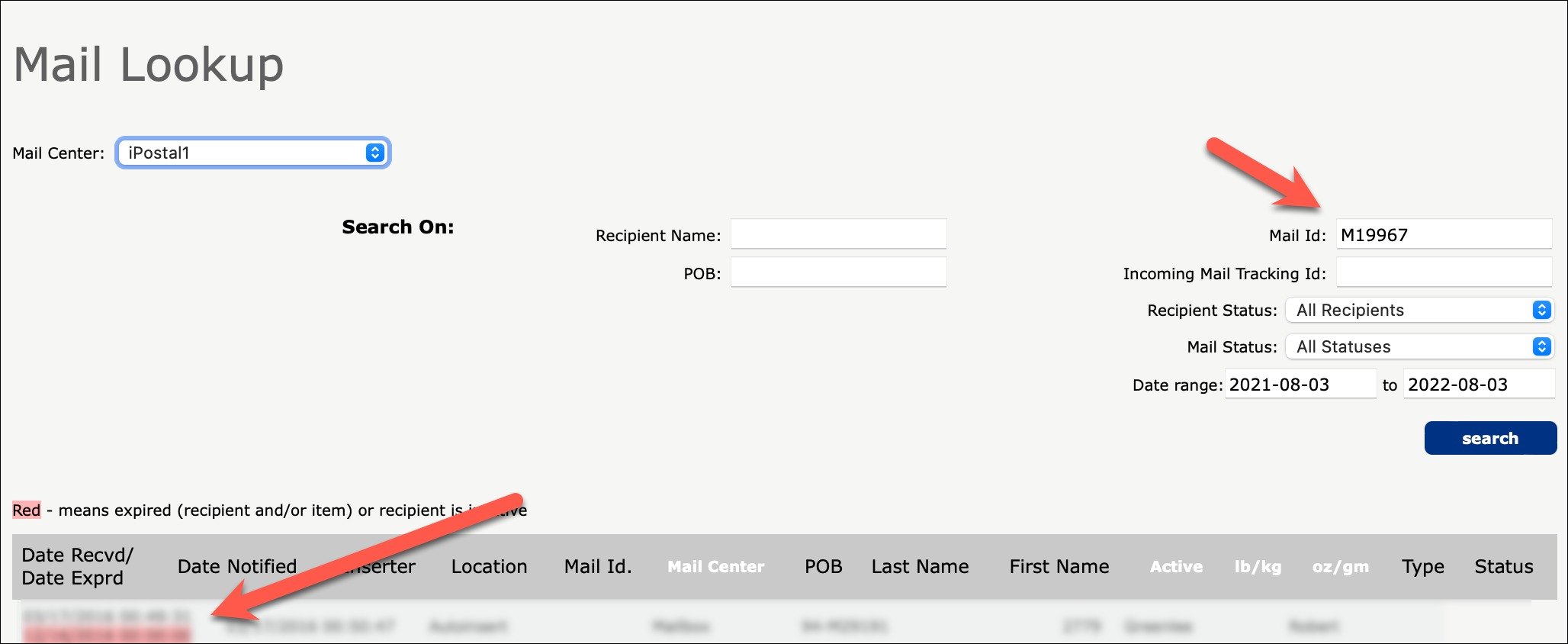
3. Click on "Add and Update Additional Images".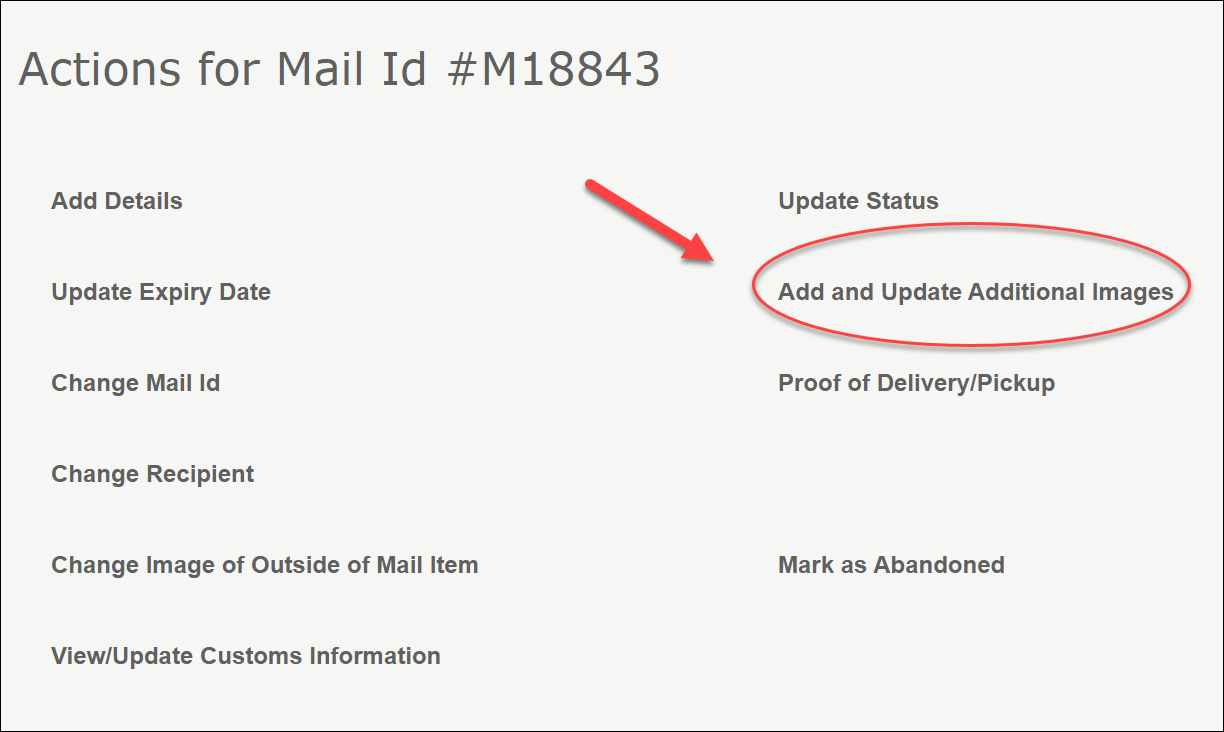
4. Click "Choose a File", to add an image. To delete an image, click "Remove this Image".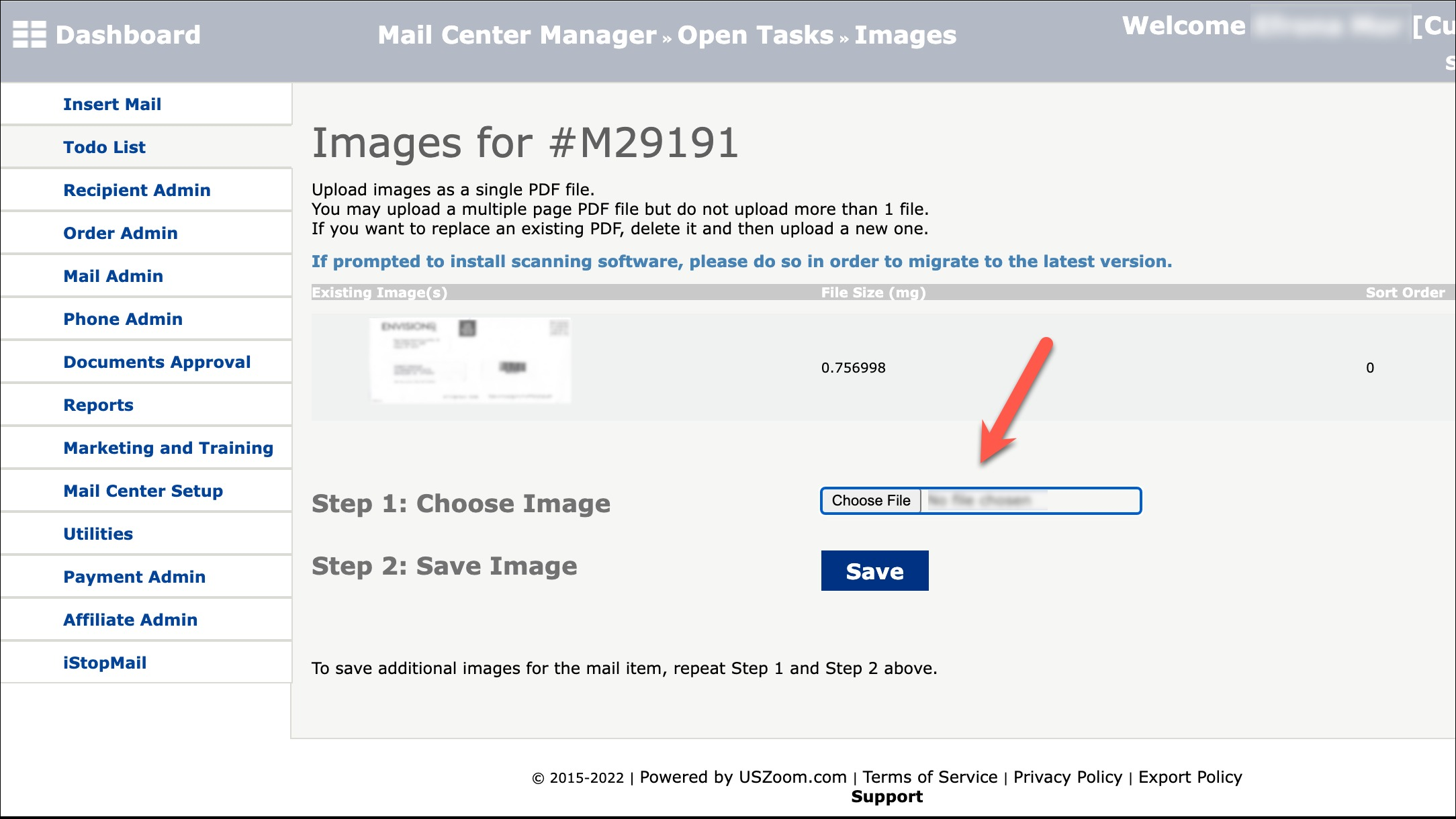
5. Browse for correct file to Upload.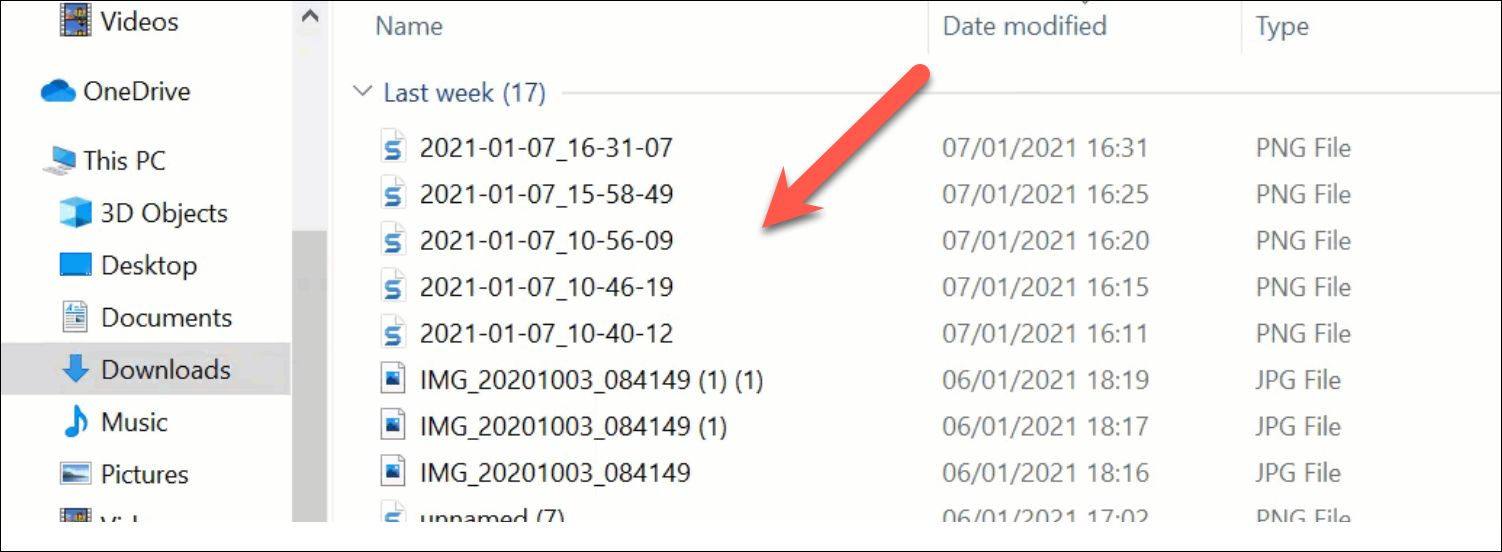
6. Click "Save". The new scan will now appear in the recipient's account.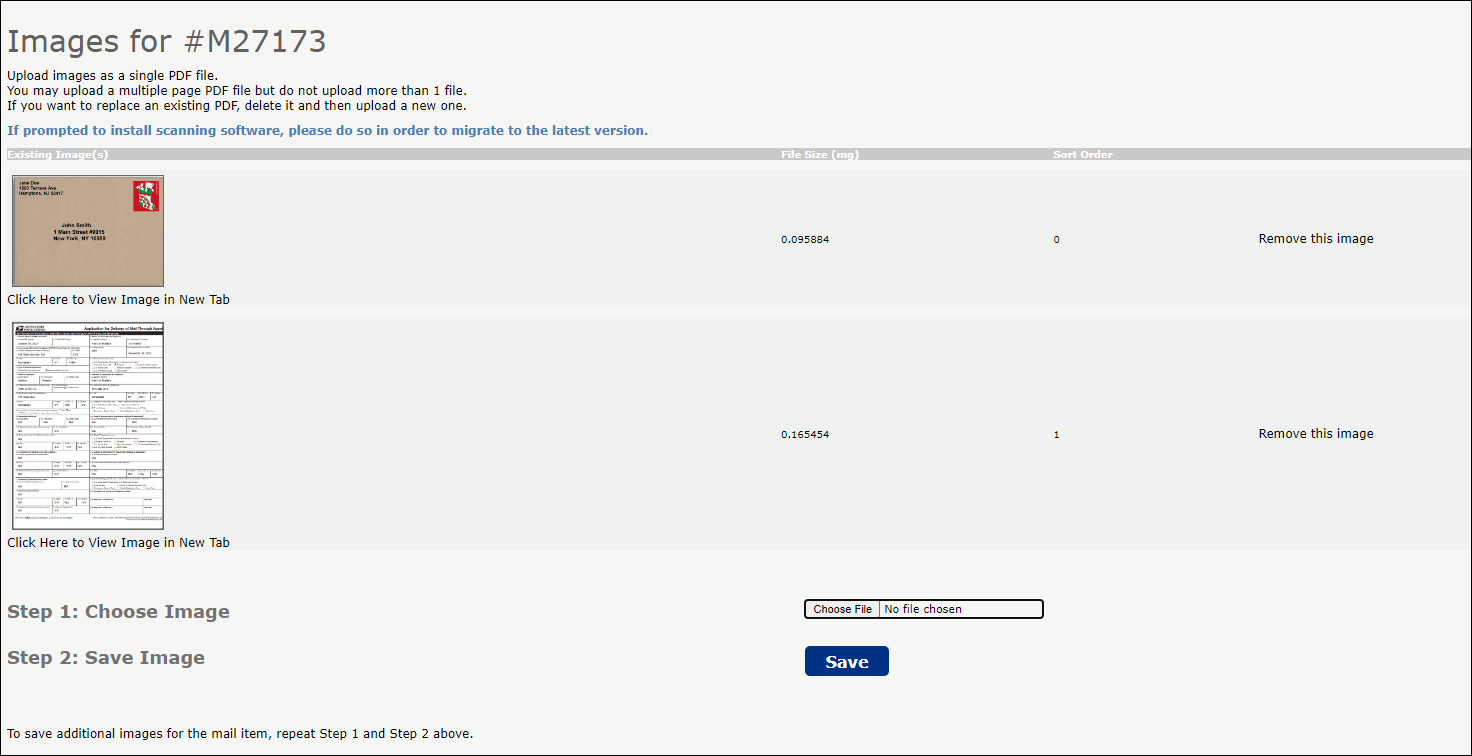
Note: The customer is not automatically notified after images are updated, the customer must login to view the updated images. You can reach out to the customer to notify them once you have updated the images.