Don't worry, mistakes happen! Simply remove the mail item from the incorrect customers account by changing the status to "Discard" and re insert it into the correct customers account.
Note: If the mail item is already involved in a pending task such as a shipping task or pick up task, the task will need to be declined before you can proceed.
To remove/delete a mail item:
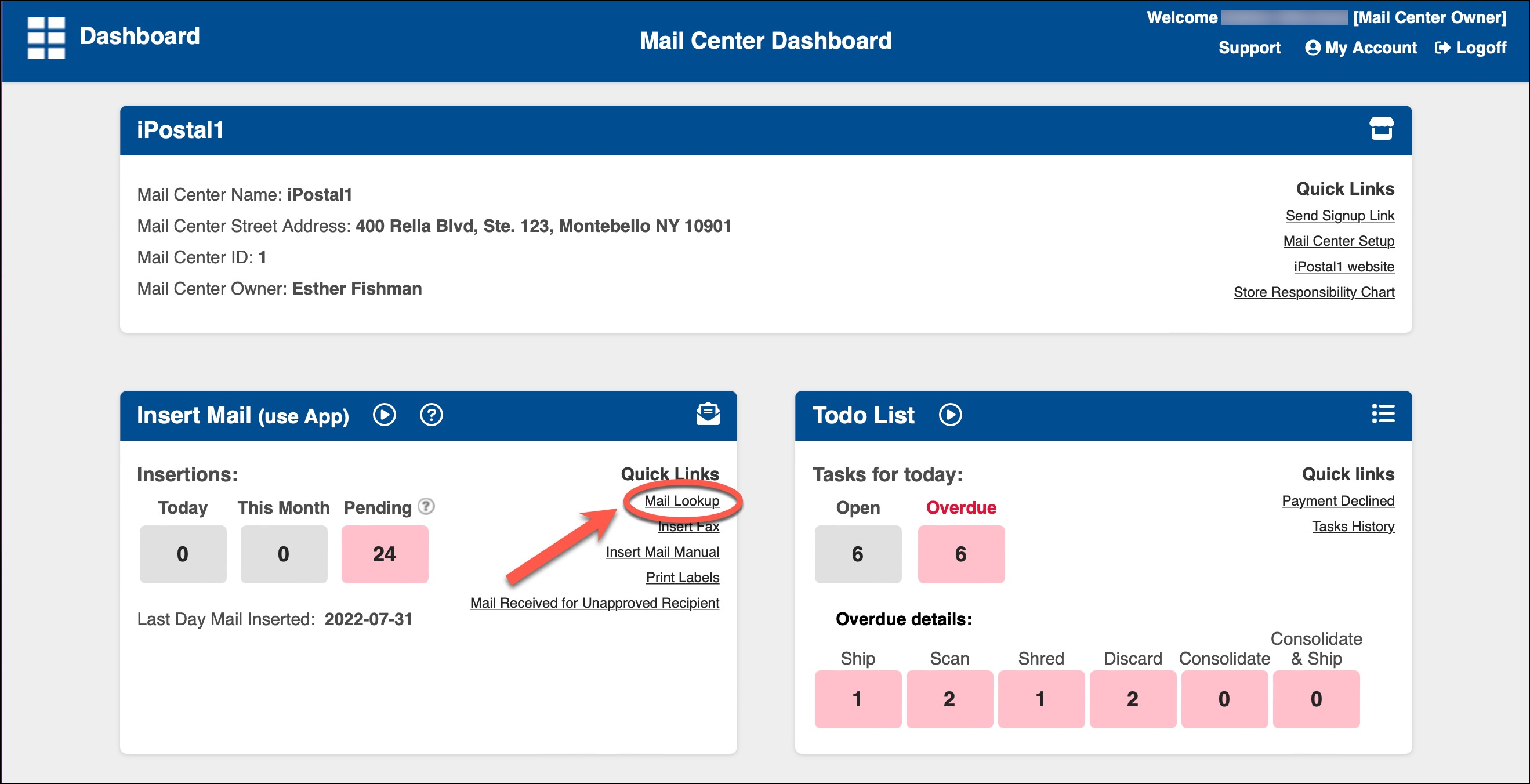
1. Click on Mail Lookup under Quick Links in the Insert Mail box on the left side of your Dashboard screen.
2. Click on "Filter" on the left. Enter the Mail ID and click "Search". Then click on the Mail item.
3. Click "Update Status"
4. Select "Discard". Click "Save".
Once the mail item is removed from the incorrect account, you can proceed to insert the mail item into the correct account using the USZoom Utility App.
Please remember to move the physical mail item to the correct folder.