
You can choose to process Scans on the Admin Portal Dashboard using your own scanner. To use our new ScanFast technology, you will first need to download a small piece of software.
- If you are using chrome as your browser, please be sure that your Privacy and Security settings allows "local Network Access".
To Setup Mail Content Scanning Software:
1. From "Open Tasks", open any scan request like you usually do, then click on the "Next" button, then click the "Download" button.
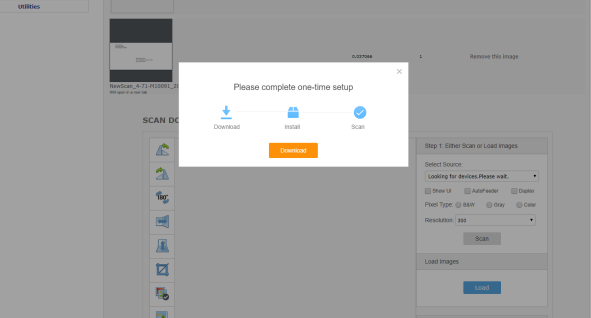
2. Click on and Open the software that just downloaded to your computer. This will usually be found on the lower left corner of your screen, when the image pops up, click on the "Next" button.
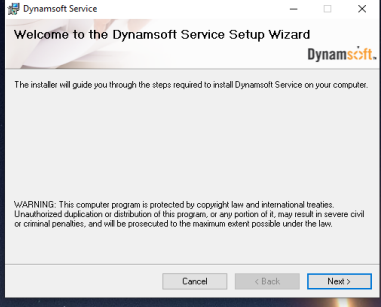
3. The Confirm Installation screen will then appear. Click ‘Next’.
4. Let the software install on your computer and then click on the refresh button on your Admin portal. Your new scanner software setup is complete!
- Open the scan task and proceed with the scan. Please refer to our article on Scan Tasks here.