
When customers sign up, they are automatically assigned the next available mailbox number within your designated range. Their full address, including the assigned mailbox number, is typically shared with them during onboarding. Customers often begin updating their contacts and relevant accounts with this information immediately.
We do not support custom mailbox number requests from customers. However, in exceptional cases where a mailbox number must be changed, this can be done through your admin dashboard.
- It is crucial that the customer is notified in advance before any changes are made.
- Use the Admin Portal Dashboard to send an email from our system to inform the customer of the mailbox number update to ensure a smooth transition and to avoid confusion.
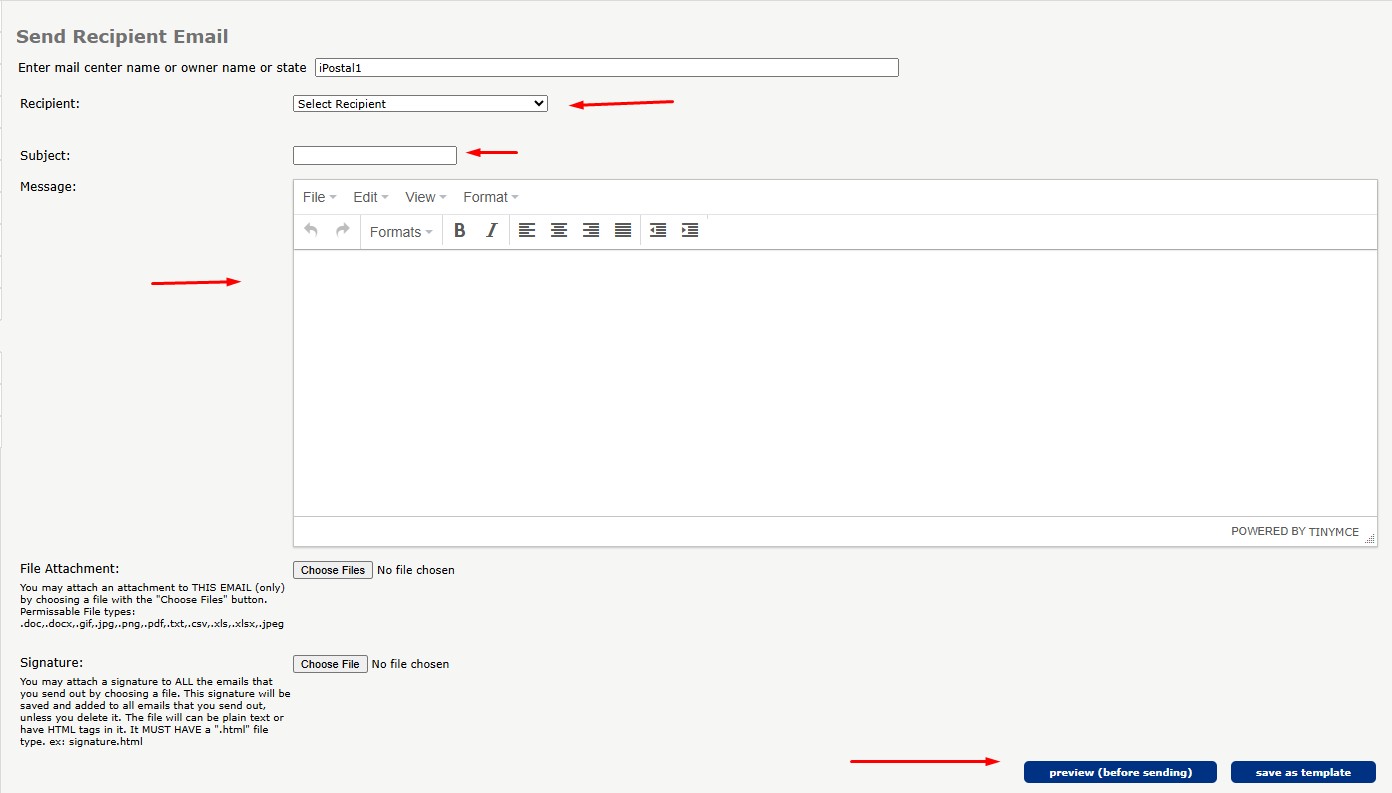
To Email the customer:
1. Locate "Recipient Admin" and click on "Send Email".
2. Click on the drop down arrow to search for the Recipient.
3. Enter a Subject and Message.
4. Click "Preview" and click "Send".
To reassign a mailbox number:
1. Locate the "Document Approval" tile.
2. Click on "Assign Mailbox".
3. Enter the recipients current mailbox number in the step 1.
4. Enter the new mailbox number in step 2.
5. To finish, click "Continue". Confirm the change and click "Confirm Assigning POB".
The customer will now be assigned the new mailbox number and the old number will be reused for another recipient.