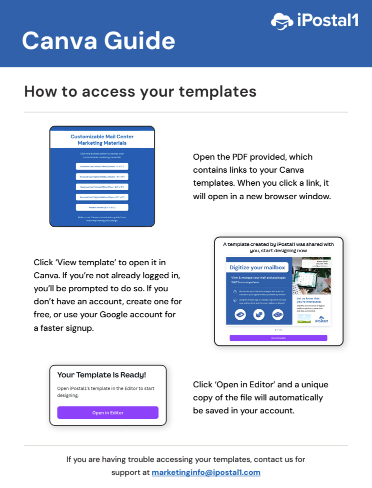
How to access your templates:
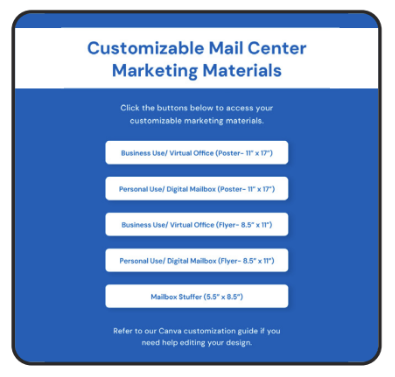
- Open the PDF provided, which contains links to your Canva templates. When you click a link, it will open in a new browser window.
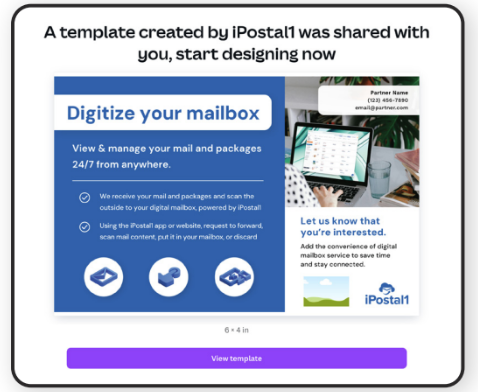
- Click ‘View template’ to open it in Canva. If you’re not already logged in, you’ll be prompted to do so. If you don’t have an account, create one for free, or use your Google account for a faster signup.
- Click ‘Open in Editor’ and a unique copy of the file will automatically be saved in your account.
- If you are having trouble accessing your templates, contact us for support at marketinginfo@ipostal1.com.
Navigating Canva
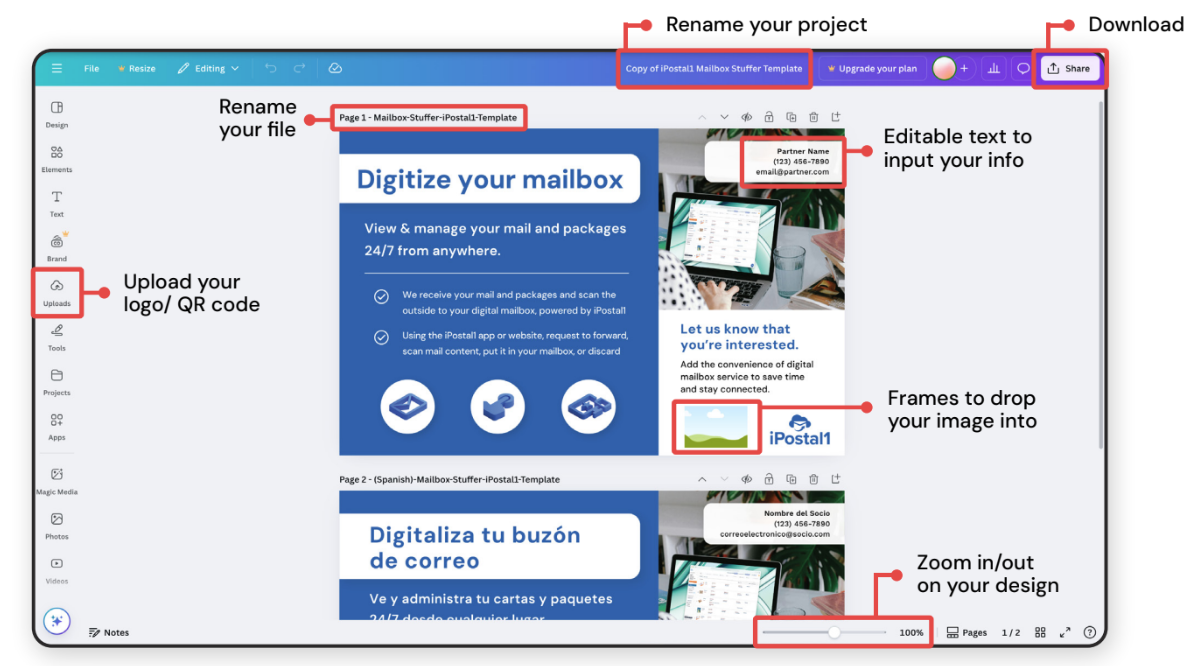
- The highlighted tools and functions are what you'll use to customize your files. All changes are saved automatically and your design will always be stored in your Canva account.
Editing Text
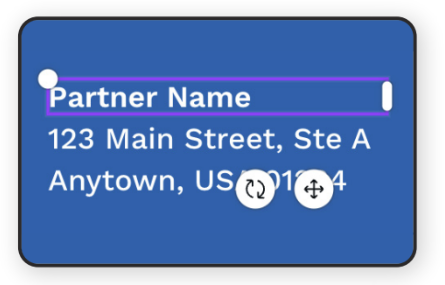
- Click on the prefilled sample text to edit it and enter the details for your mail center.
- The font style, size, and placement are already set, no adjustments needed.
Uploading your QR code and logo
- To upload your QR code or logo, go to the vertical tools menu on the left side of your screen and click ‘Uploads’. Then, click the purple ‘Upload files’ button and select your image(s).
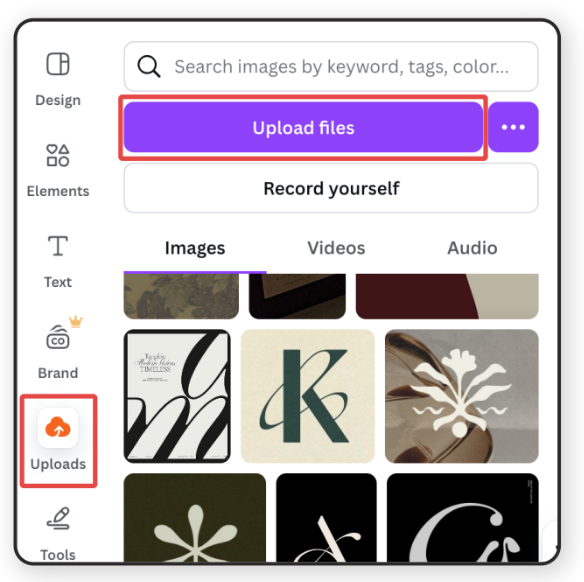
- Once uploaded, drag and drop the image from your library into the corresponding frame.
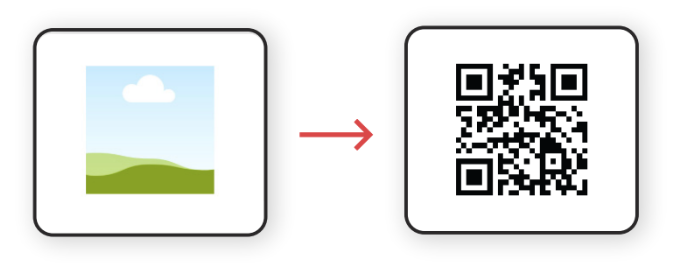
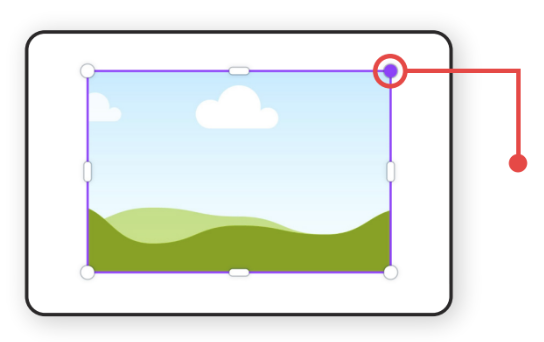
- If your uploaded logo doesn’t fit the frame’s proportions, click on the image and drag the handles to adjust it as needed.
Downloading files
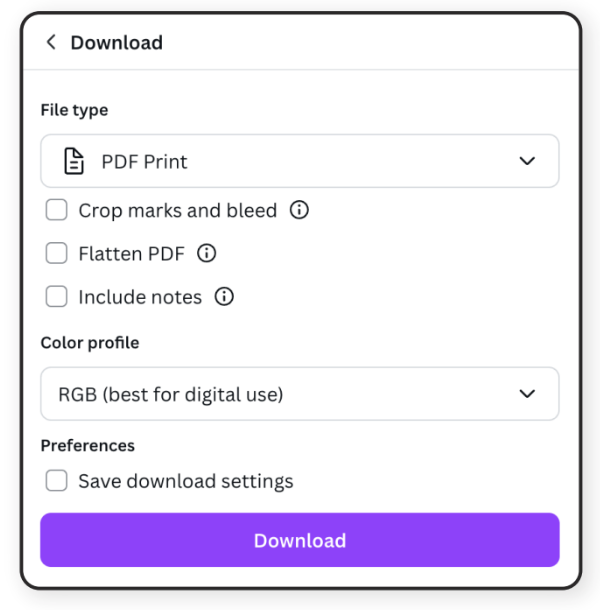
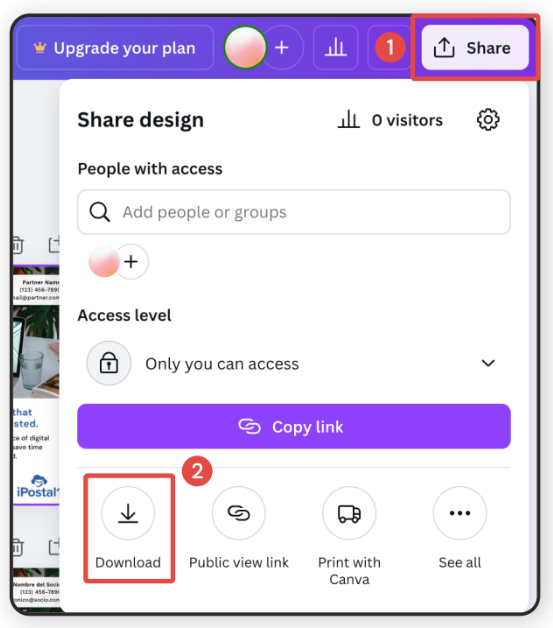
- Once you’ve finished your edits, click the ‘Share’ button at the top right of your screen, and in the new pop-up window, click ‘Download’.
- Choose your desired file type. For printing, we recommend saving as ‘PDF Print.’
- Once completed, click ‘Download’ to save the file to your computer.