
For security reasons, customers email address are not viewable in their account but you can simply send customers an email from your Admin Portal dashboard. You can send one individual email or as a bulk to all customers at once.
- You can use this feature to notify your recipients of a change in pickup hours, holiday hours and closures, any task request updates or as a courtesy when an important mail item arrives.
Note: Only approved customers will receive this email. Any pending customer will not be listed. If you need to communicate with a pending customer, please contact support.
To send an email from your Dashboard:
1. Click on the "Send Email" button located under Quick Links in the Recipient Admin tile.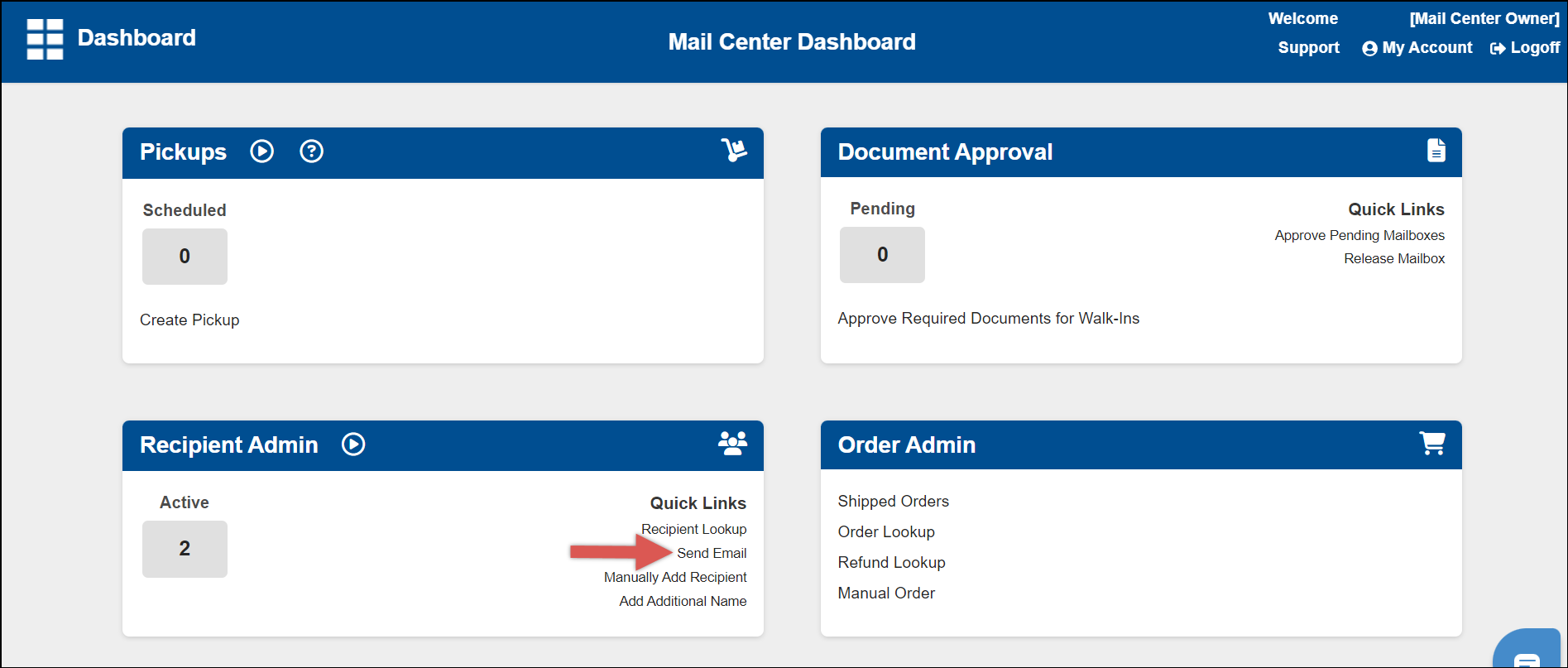
2. Choose "All Recipients" from the dropdown menu.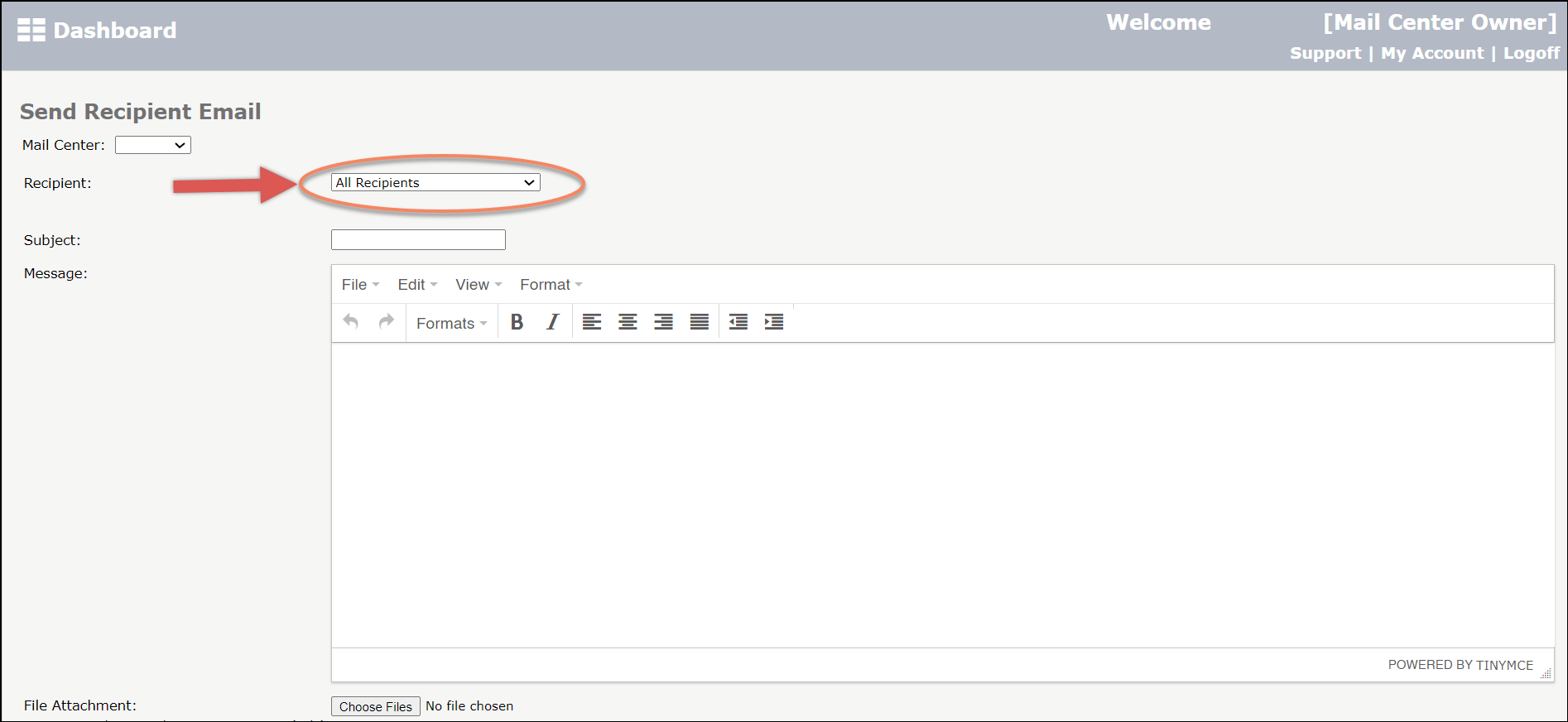
3. Add a Subject and Message and click on "Preview" before sending.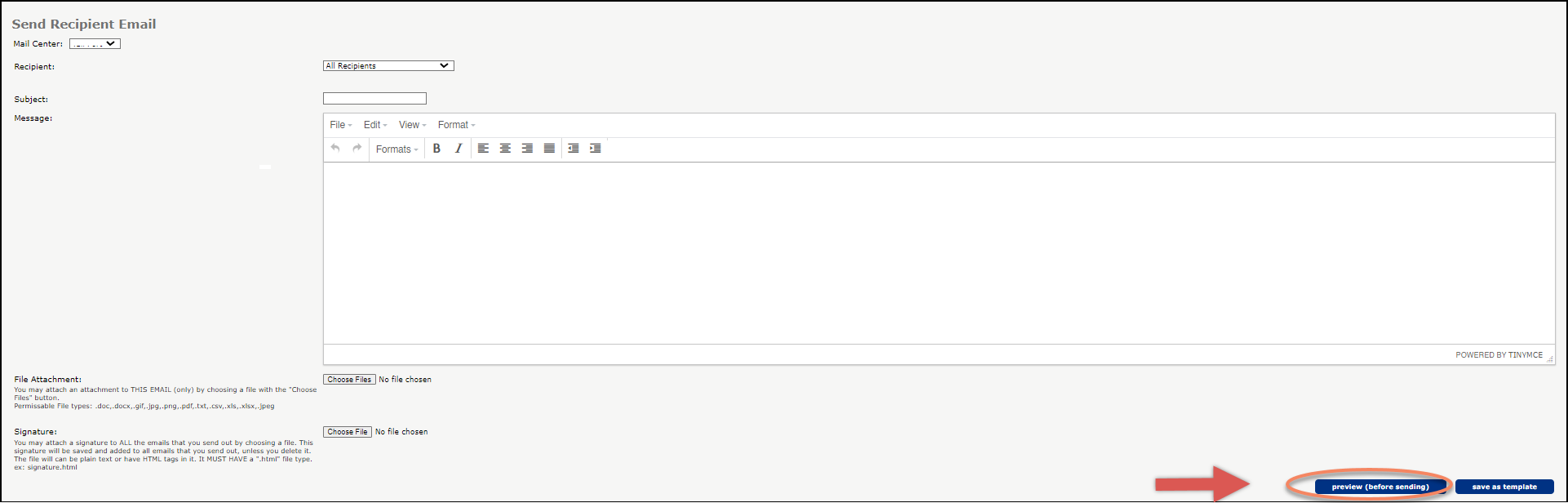
4. Click "Send" to complete the process.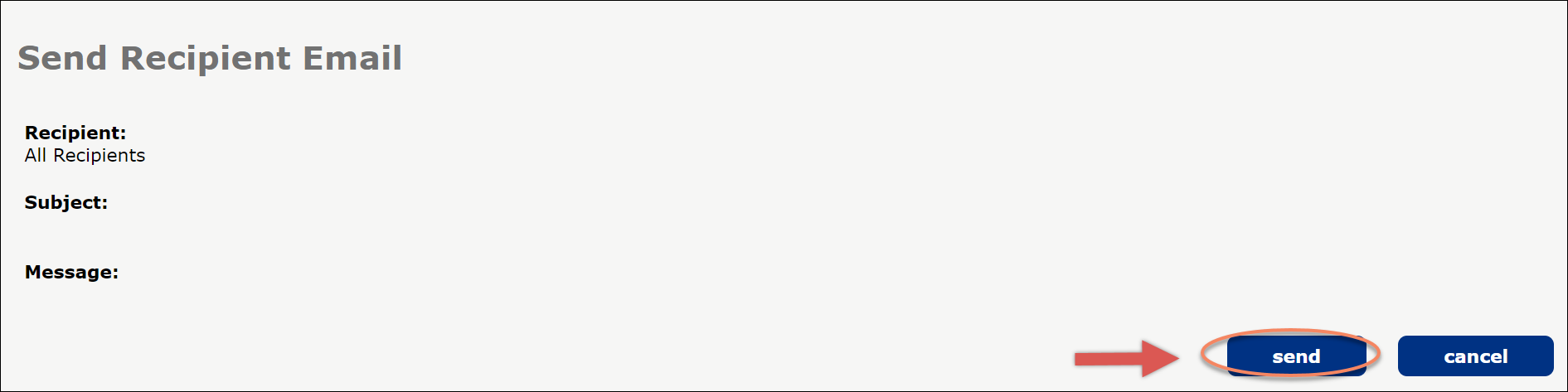
To send an email from the Recipient's Details Page:
1. On the dashboard click "Recipient Lookup" in the "Recipient Admin" tile.
2. Search for the box in question by using the Recipients name or mailbox number then click "Search".
3. Click on the customer's information.
4. On the Recipient Details page click "Send Email". (In this option you do not need to select the specific customer in a dropdown menu).
5. Write the email, add a subject and click "Preview".
6. View the preview and click "Send".