If the customer's account is already approved and you would like to upload updated or additional documents, you can do so directly from your Admin Portal Dashboard.
Note:
- This option is only for existing customers and not for customers with a pending mailbox.
- Please review all documents and sign the new form 1583 as the witness.
Step 1: Search for the customer:
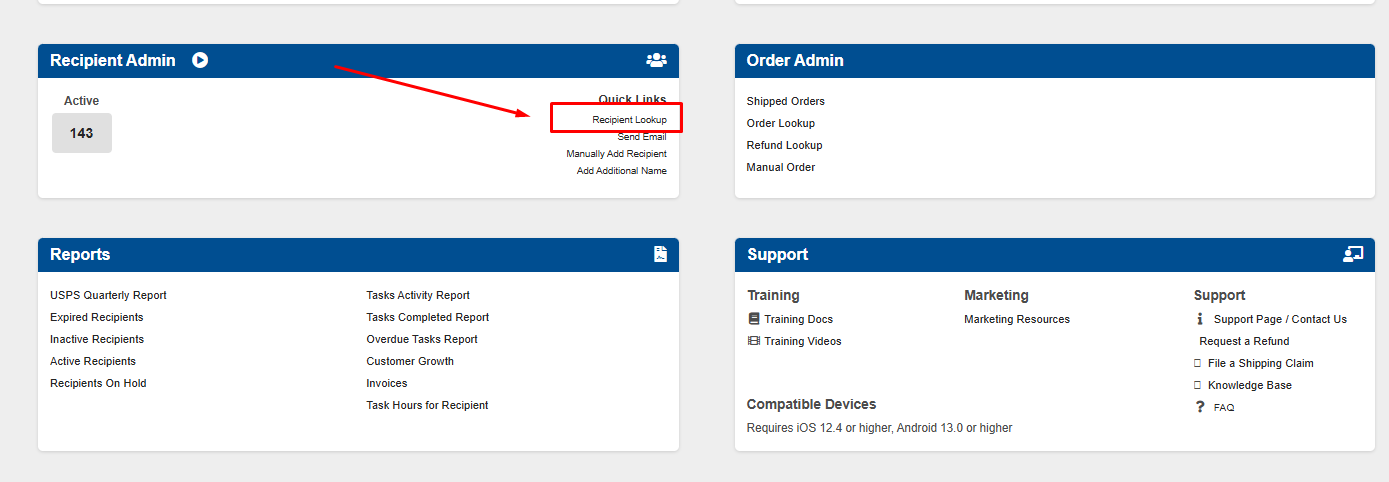
1. Go to "Recipient Admin", click on "Recipient Lookup" or click here: Recipient Lookup.
2. Enter the customers mailbox number, click "Search".
3. Click on the customers username.
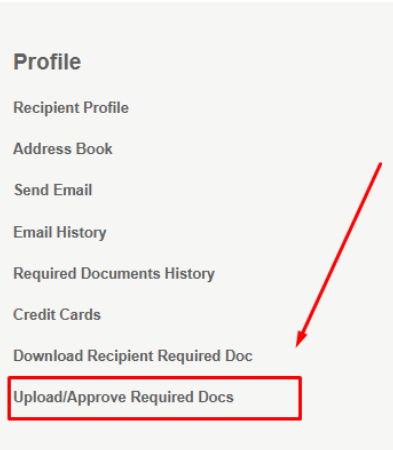
4. Navigate to "Recipient Details Page", locate "Profile".
5. Click on "Upload/Approve Required Documents".
Step 2: To Upload Completed Documents:
1. Scan the signed form 1583 and 2 forms of ID into your computer as PDFs .
2. From the Recipients Details Page: Click "Upload/Approve Recipient Docs".
3. Click "Upload Required Documents". Find the file, click "Upload".
4. You will now be able to view the uploaded documents in the customer profile.