If a walk in customer has not yet created an iPostal1 account, you can manually add them and create the account on their behalf. Once the account is created, the customer will still be required to sign in and provide payment information.
How to add a new customer manually:
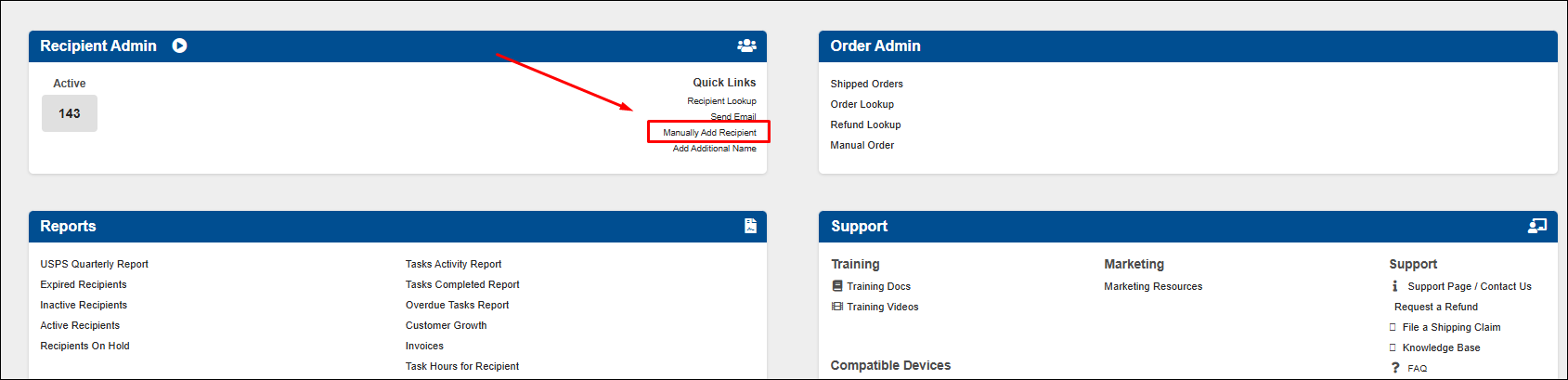
1. Go to "Recipient Admin" tile in the Admin Portal Dashboard. Click "Manually Add Recipient".
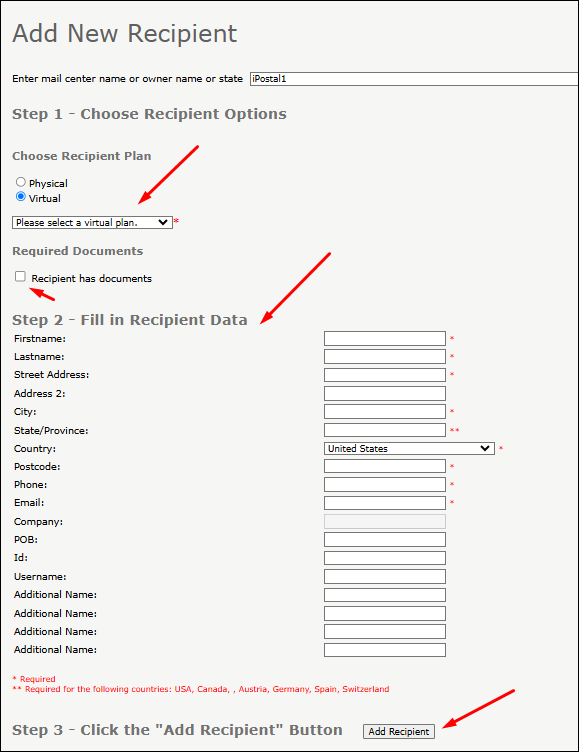
2. Choose Recipient Plan: Click "Virtual" then select a virtual plan from the dropdown menu. (Personal Plan, Business Plan or Virtual Business)
3. Required Documents: Check the Box if you already have the 1583. If not, have the customer fill one out and then check the box to confirm.
4. Enter the Customer’s Personal information, leave POB blank.
5. Click "Add Recipient". The customer has been successfully added and assigned an iPostal1 mailbox number.
Note:
- The Customer will receive an email welcoming them to iPostal1, providing them with links to download the iPostal1 App to their Mobile Devices.
- The customer will need to login and provide their credit card information. Once the payment is processed successfully, the account will be valid.